Moving from Cozi to MiloMint? Bring your family schedule with you.
Switching family apps usually means an afternoon of retyping. Not here. Cozi can print its calendar and lists; MiloMint can read a printout with Snap. So the whole move is: print (or screenshot), snap, review. No spreadsheet, no typing a single date.

TL;DR: On cozi.com open Month view → Print → Save as PDF. In MiloMint open Snap → Calendar → Upload a PDF. Review the dates it found, tap Add. Repeat per month. Same for shopping lists via Snap → Shopping list.
How this works, plainly: MiloMint does not connect to your Cozi account or move it anywhere. It reads a PDF or screenshot that you export yourself, proposes the dates and items it can find, and you review every one before it saves. Any printed or photographed calendar works the same way.
Before you start (2 minutes)
Download MiloMint (free, iPhone & Android), create your family and add your kids. Free accounts get 2 snaps a month; if you are moving a whole school year, MiloMint Plus gives you 15 a month, and the shared calendar itself is free forever either way.
Step 1: get your Cozi calendar onto paper (or a PDF)
On a computer, sign in at cozi.com, open the Calendar and switch to Month view. Use the browser’s Print, and choose Save as PDF instead of a printer. Do this once per month you want to move: this month, next month, and so on. On a phone, a clean screenshot of the month view works just as well.
Tip: skip months that only hold recurring things (weekly practice, piano on Tuesdays). Those are faster to add once in MiloMint with Repeat than to snap month after month.
Step 2: snap it into MiloMint
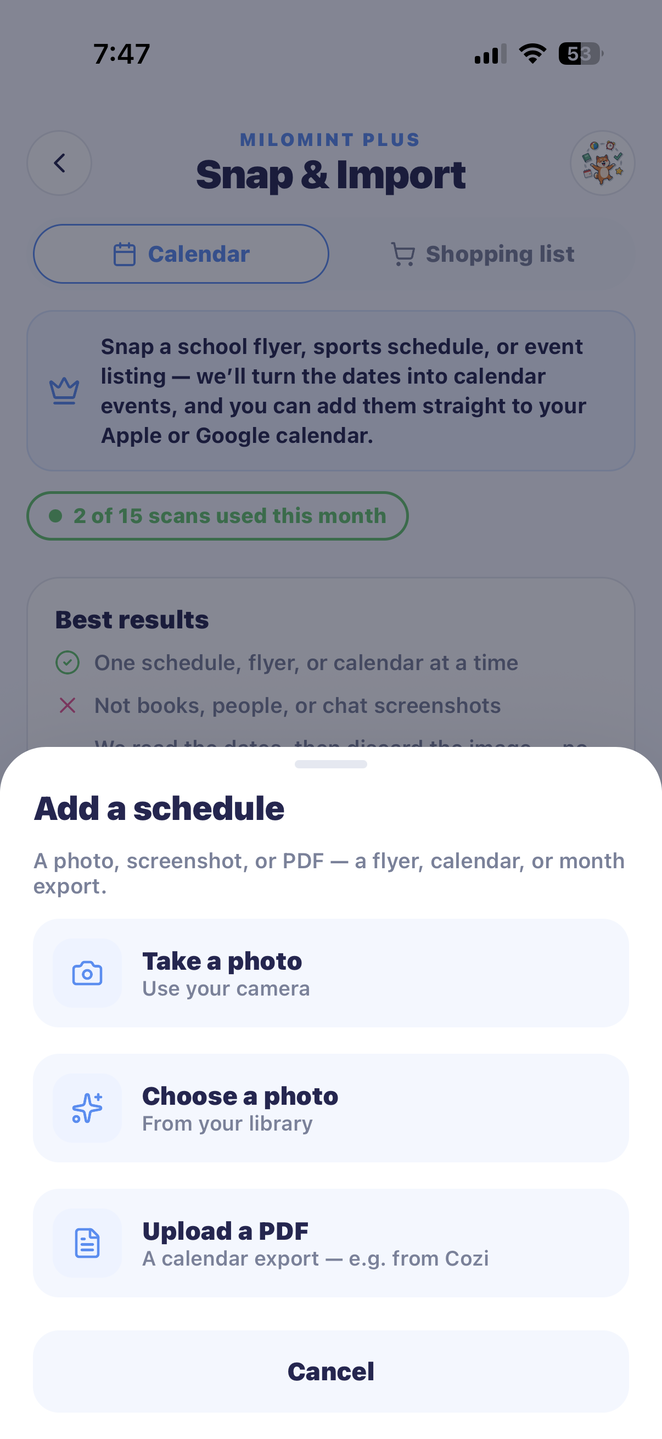
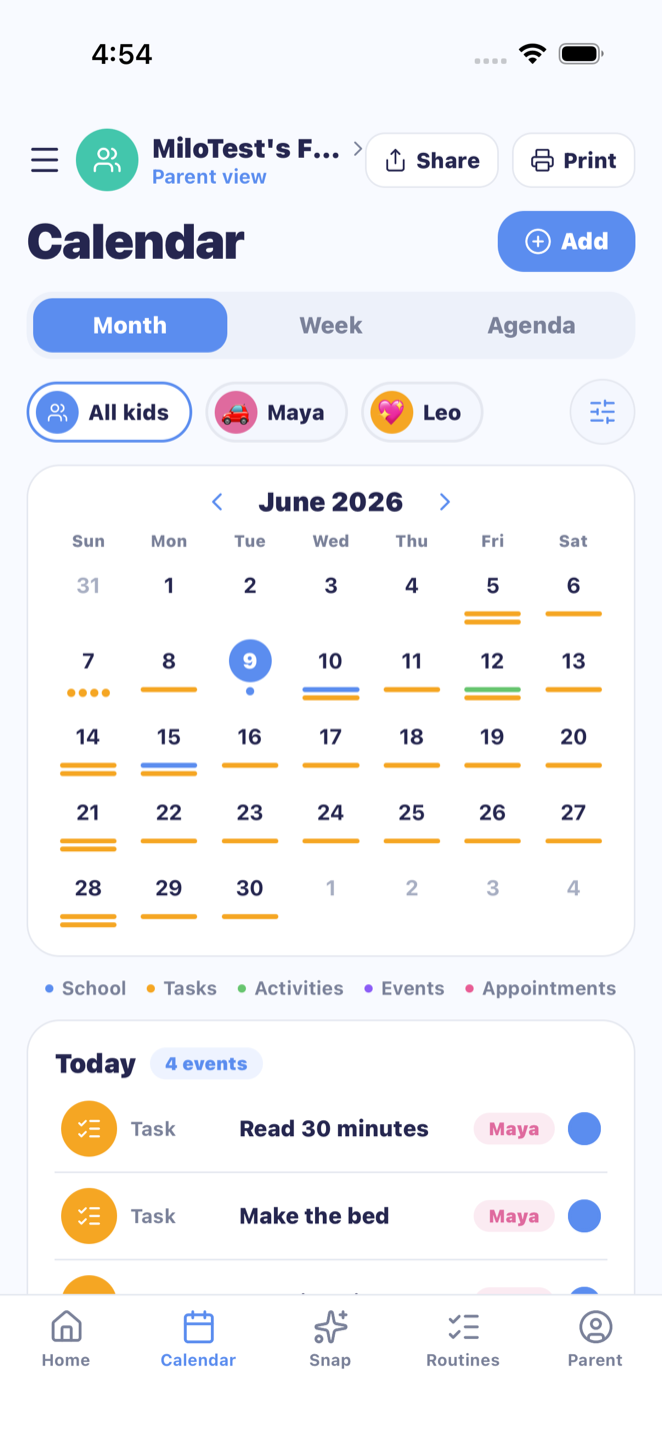
In MiloMint, tap Snap in the bottom bar. Keep Calendar selected, tap Scan a schedule, then choose Upload a PDF (or Choose a photo for a screenshot). MiloMint reads the dates it can find and shows you the list before anything saves. Uncheck what you don’t want, tap Add, and the month is on your family calendar. One tap more sends it to Apple or Google Calendar if you want it there too.
Step 3: move the shopping list the same way
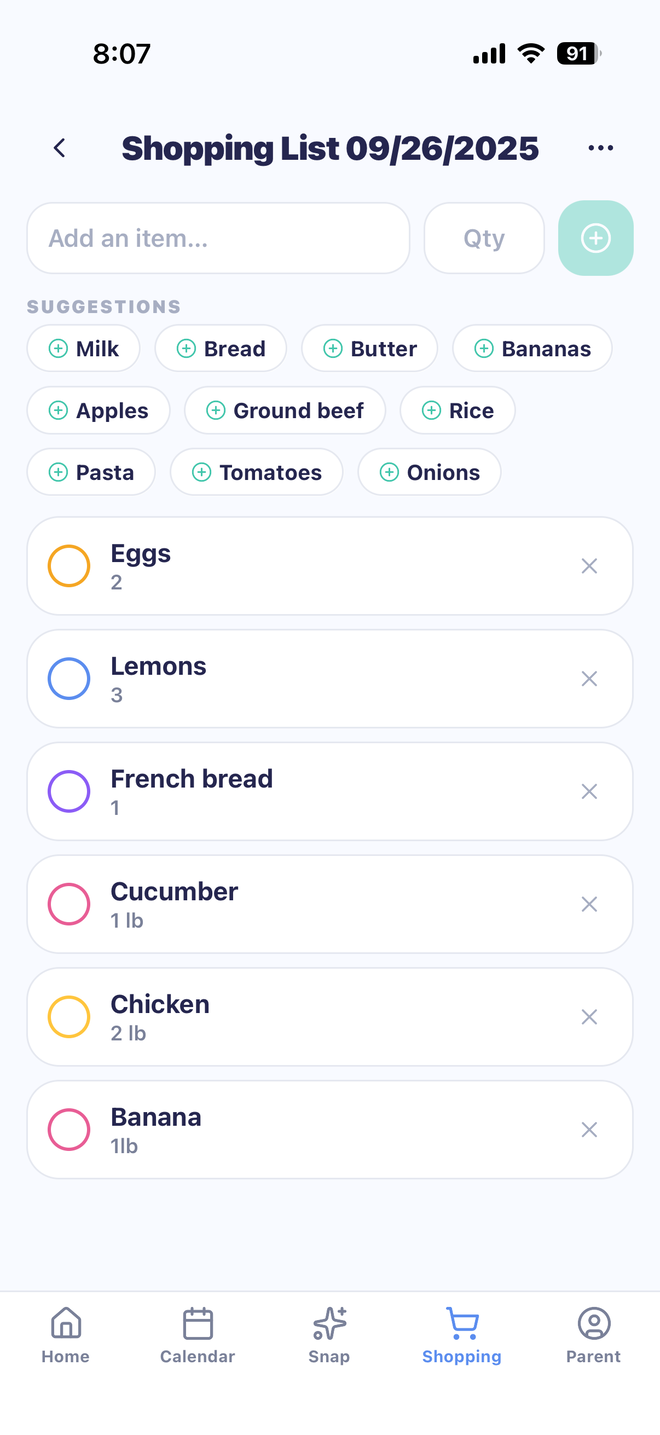
Open the list in Cozi and print or screenshot it. In MiloMint open Snap, switch to Shopping list, and upload it. Each item it finds becomes a checkable line on a shared list you can tick off at the store and share with your co-parent. The same trick works on a teacher’s school-supply list or a recipe.
What you get after the move
The calendar stays free and ad-free. And MiloMint adds the part Cozi never had: chores that earn allowance, earned screen time, and a kid login (a code, not an email) so kids see their own day. Run both apps for a week if you like; most families stop opening Cozi by the second weekend.
Ready to switch?
Free calendar, no ads. Snap your printed Cozi calendar in and keep the habits you already have.
Get MiloMint free on the App Store →Free family calendar, chores & allowance · No ads, ever · Plus adds Snap & printing for $29.99/yr
Cozi is a trademark of its owner. MiloMint is an independent app and is not affiliated with, endorsed by, or connected to Cozi.
Frequently asked questions
Does MiloMint connect to my Cozi account?
No. There is no account link or automatic transfer. You print or screenshot your Cozi calendar and lists yourself, and MiloMint's Snap reads that file and proposes dates and items for you to review. Print, snap, review.
How many snaps does a whole school year take?
One snap per month view, so about ten for a school year. Free accounts include 2 snaps a month; MiloMint Plus includes 15, which covers the whole year plus your lists in the first week.
Do I have to move everything at once?
No. Most families snap this month and next, then run MiloMint alongside Cozi for a week. Recurring events (weekly practice, piano) are quicker to add once with Repeat than to snap month after month.
Can I bring my shopping list too?
Yes: open the list in Cozi, print or screenshot it, then Snap → Shopping list → upload. Each item it finds becomes a checkable line on a shared MiloMint list, and you can fix anything before saving.
What happens to events that need fixing?
Snap shows you the dates it found before anything saves. Uncheck what you don't want or fix a detail, then add. Afterwards any event can be edited on the calendar (swipe left → edit).